Sound-pads Help
Stec Records
This is a help file for the Stec Records Sound-pads web app V20260316.
Pad-sets are collections of sound-pads that can be moved around, resized and recolored.
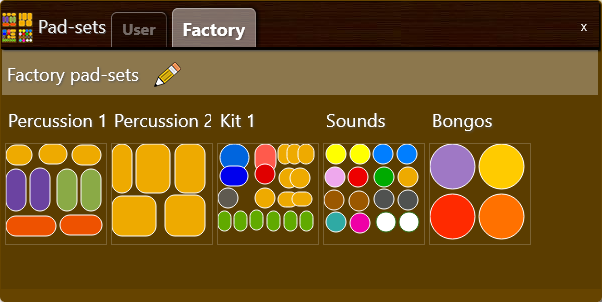
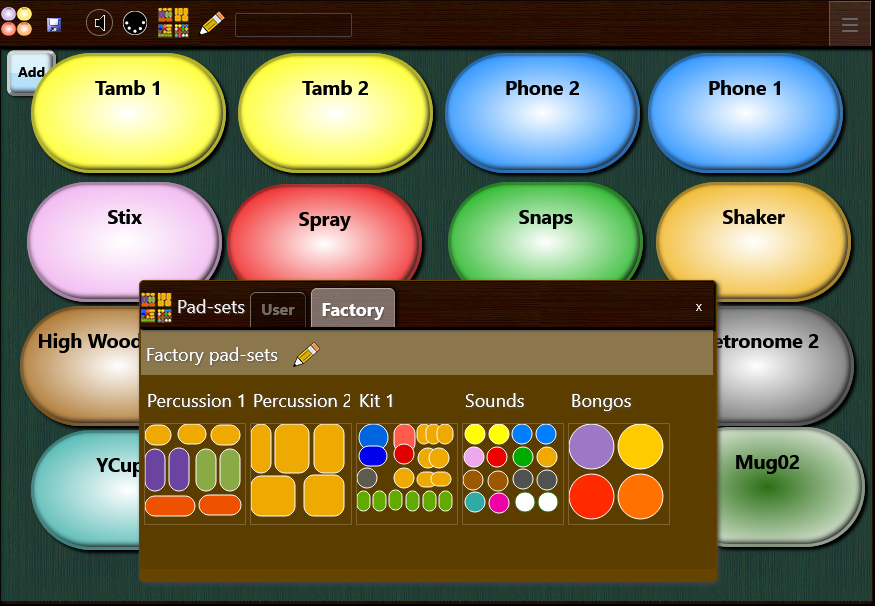
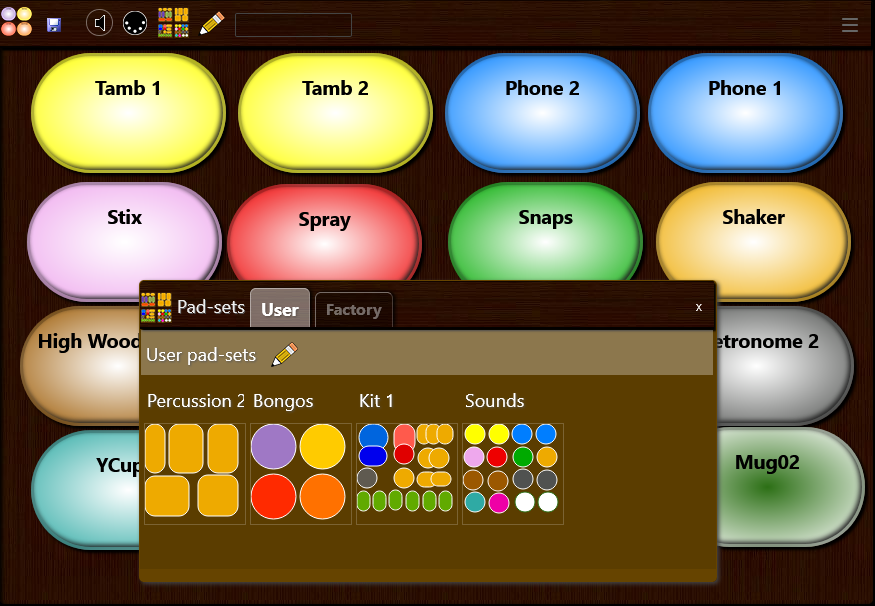
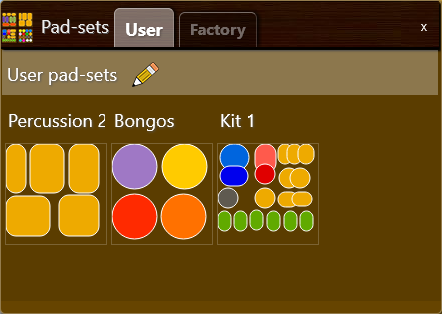
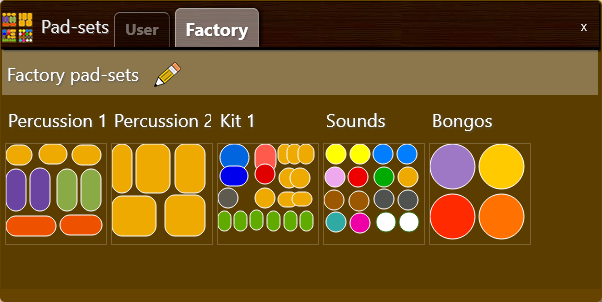
Pad-sets are selected with the Pad-set picker that shows a tab for user pad-sets and for factory pad-sets.
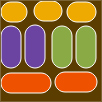
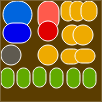
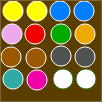
Each thumbnail is created using size, placement and colors of the pads in the set to make them easier to identify. You simply click a thumbnail to load the pad-set.
Factory pad-sets
When factory pad-sets are loaded, the background changes color and an “Add” button appears in the top left corner of the panel.
When you click the Add button, the factory pad-set gets copied to the user sets where it can be edited if needed.
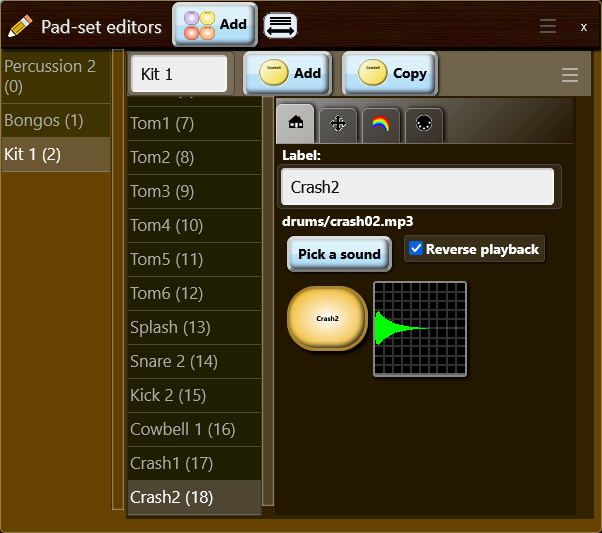
When you click the pencil icon on the main panel or the picker, the pad-sets editor is shown. The editor contains a list of the pad-sets on the left and an editor for the selected pad-set on the right.
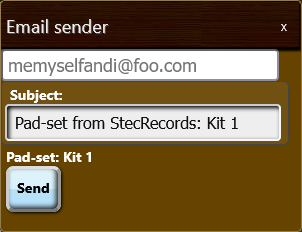
This is the panel you use to email a pad-set to a friend or yourself.
The email will look like this:
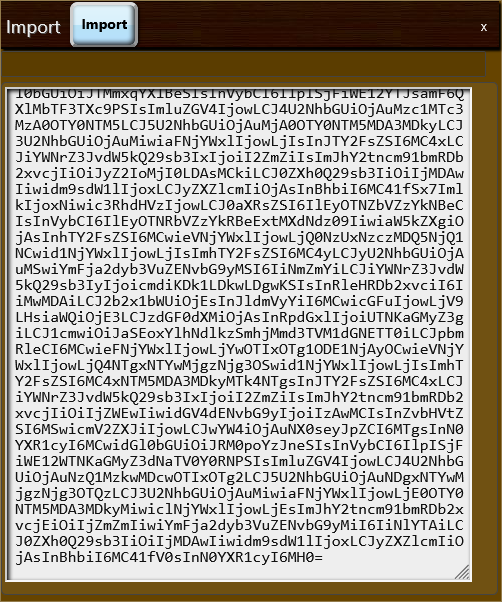
You copy the letters and numbers between the two lines and paste them into the Import Panel.
This is the import panel where you enter encoded data that gets sent from the Email sender panel.
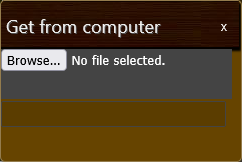
When you get a file from the computer, the following prompt appears:
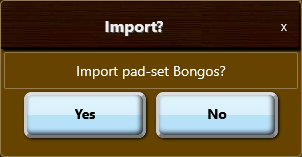
When you click “Browse…” and select a file, the following prompt appears giving you the option of importing the pad-set:
A pad-set editor allows you to add pads to a set and edit their properties.
When changes are made to the user pad-sets a “save” icon (floppy disk) appears beside the app icon that saves the changes to browser storage when clicked.
Note - Changes are ONLY saved in your browser memory but get restored when you refresh or return to the page on that browser.
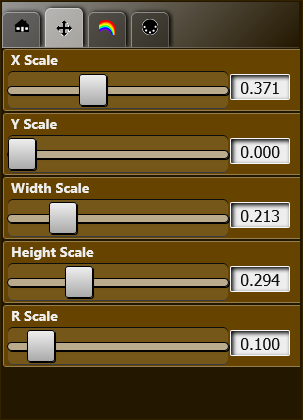
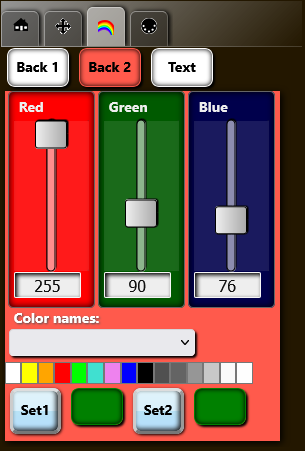
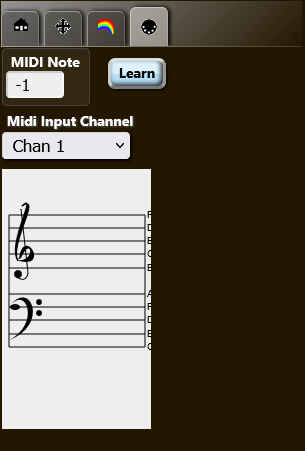
To make it easier to find specific properties of a pad, the properties have been grouped into a home panel, a dimensions panel, a colors panel and a MIDI panel. .
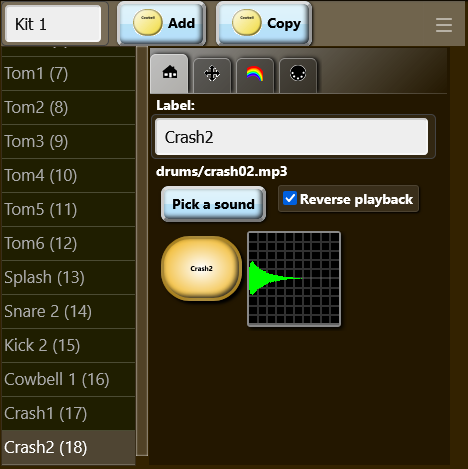
The home panel lets you pick a sound to use with the pad and to optionally change the name of the pad which defaults to the name of the sample.
Label
The label is the text that appears on the pad. It defaults to the name of a sound sample if you pick one but can be changed afterwards.
File url
Shows the relative path and filename of the sound sample.
“Pick a sounds” button
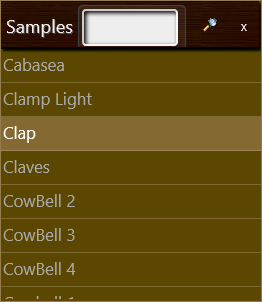
This opens the “Samples” panel where you can select a sound to use with your pad.
“Reverse playback” checkbox
When checked, the sound assigned to the pad will be played back in reverse (backward).
Test pad
A version of the pad that can be clicked to test.
Waveform viewer
A small waveform viewer that shows the audio for the sound sample.
The dimensions panel lets you set the x and y position of the pad as well as the width, height and corner radius. These values are all relative to the width and height of the panel.
The colors panel lets you set the two colors used to create the gradient for the pad and a the color for the text. Back 1 is the inner color and Back 2 is the outer gradient color.
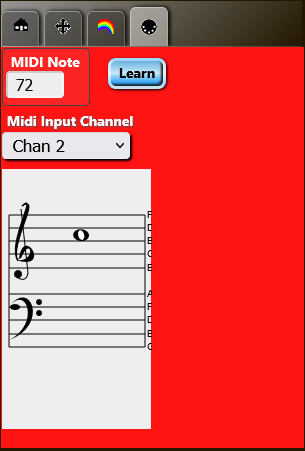
The MIDI panel lets you define a musical note that will trigger the pad’s sound using the velocity in the message.
The MIDI channel for the note can also be specified and a special Learn mode can be enabled with the “Learn” button which turns the background red and updates the MIDI note and channel to incoming notes.
Clicking it shows and hides the splash screen that shows information about the app including the version.
Opens the Volume tool that includes a slider for adjusting the sound level (volume) of the pads.
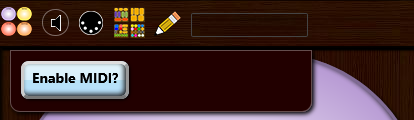
Opens the MIDI-enable panel that drops down below the main toolbar and contains an “Enable MIDI?” button the user can click to enable [web]-MIDI on the app.
The Pad-set picker lets the user select pad-sets from the factory library or from the users saved sets.
Includes 3 congas, 2 bongos, 2 timbales and 2 agogo
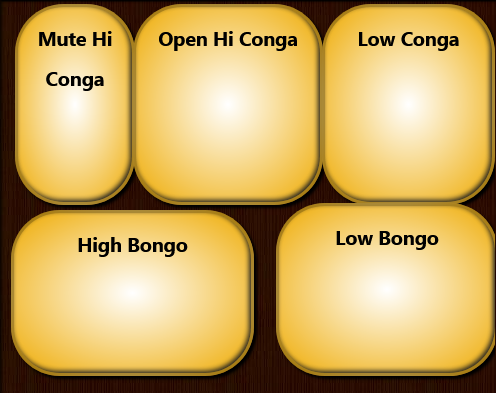
Includes 3 congas and 2 bongos.
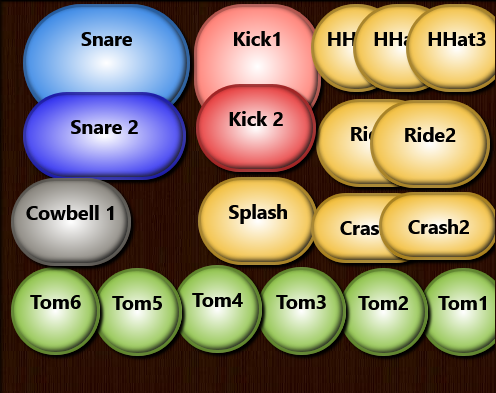
Includes 2 snares, 2 kicks, 3 hihats, 2 rides, 2 crash cymbals, a splash cymbal, a cowbell and 6 toms.
Includes 2 tamboreens, 2 rotary phones, drum sticks, aerosol spray, finger snaps, shaker, 2 wood blocks, 2 mechanical metronome clicks, a yogurt cup, maracas and 2 mugs.
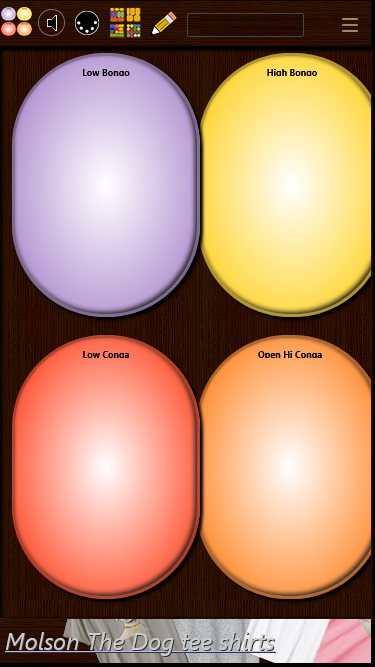
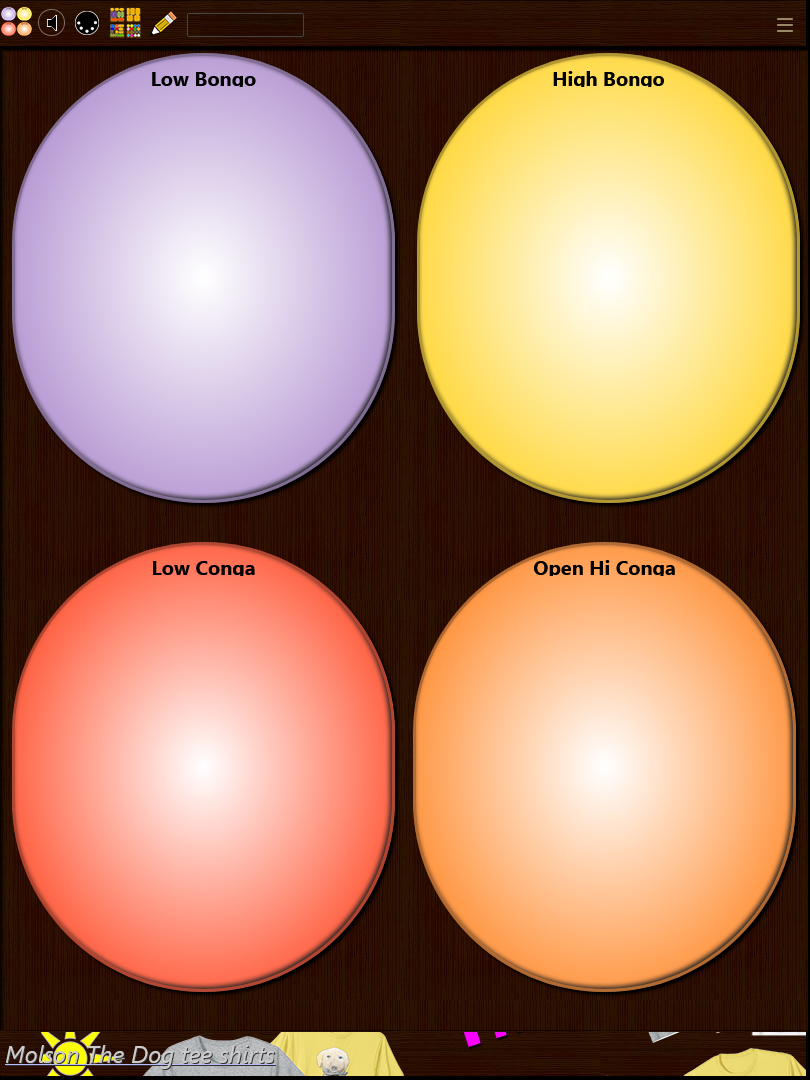
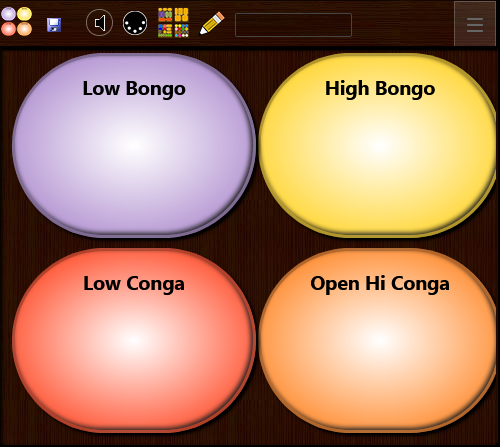
Includes a low bongo, a high bongo, a low conga and a high conga.
When present, the pencil icon opens the pad-sets editor (see Pad-sets editor)
The Sound-pads app will run on nearly all modern devices to connect to the Internet including smartphones, tablets, laptops and desktops.
The screens of the app are identical for all devices except on phone screens where the editor panels only show one panel of the editor’s splitter at a time and adding “Back” buttons to provide navigation.
Opens the pad-set picker.
Opens a panel that lets you send a message to the Stec Records
Opens a panel that lets you submit a pad-set for a possible factory preset on a future release.
Opens a tool that lets you adjust the level of the reverb.
Hide the ads along the bottom of the panel.
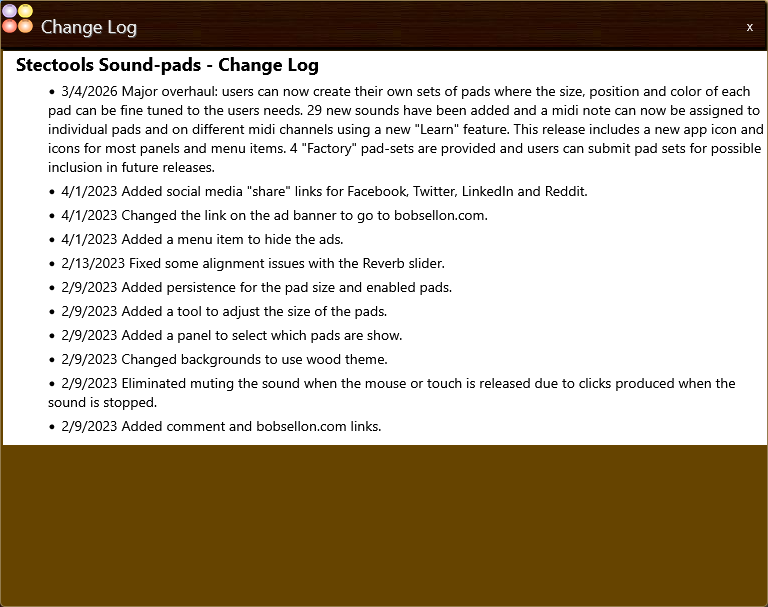
Opens a panel that shows the changes made to the app by date.
Opens the splash panel that shows briefly when the app starts up. You can also show this by clicking the app icon in the top left corner.
Opens this file.